Got a new Roku TV and want to add your favorite streaming apps? Whether you want to watch movies, stream live sports, listen to music, or use entertainment services, installing apps on Roku TV is quick and beginner-friendly.
Unlike smartphones that use app stores, Roku calls its applications channels. The process is almost the same as downloading an app, and you can install popular services like Netflix, YouTube, Disney+, Hulu, and many more directly from your Roku device.
In this guide, we will show you how to install apps on Roku TV step-by-step, how to search for new channels, how to add apps from the Roku website, and what to do if Roku apps will not install.
What You Need Before Installing Apps on Roku TV
Before adding apps to your Roku TV, make sure you have the following:
- A Roku TV connected to the internet.
- A working Roku remote.
- A Roku account.
- Enough storage space for new channels.
If your Roku TV is not connected to the internet, go to:
Settings → Network → Set Up Connection
Choose your Wi-Fi network and enter your password to connect.
How to Install Apps on Roku TV From the Home Screen
The easiest way to install apps on Roku TV is through the built-in Roku Channel Store.
Follow these steps:
- Turn on your Roku TV.
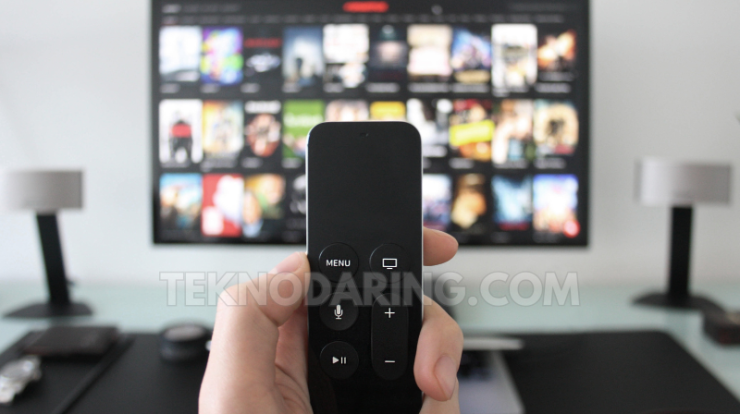
- Press the Home button on your Roku remote.
- Scroll down and select Streaming Store or Store.
- Select Search.
- Type the name of the app or channel you want.
- Select the channel from the search results.
- Choose Add Channel.
- Wait until the installation is complete.
After installation, the new app will appear on your Roku TV home screen.
How to Search for Apps on Roku TV
Finding apps on Roku TV is simple. You can search by using your remote or voice search if your Roku remote supports voice commands.
To search manually:
- Press the Home button.
- Select Search.
- Enter the name of the app.
- Select the correct channel.
- Add it to your Roku TV.
Make sure you choose the official channel to avoid installing fake or unofficial apps.
How to Install Apps on Roku TV Using the Roku Mobile App
You can also add apps to your Roku TV using the Roku mobile app available on smartphones.
Steps:
- Download the Roku mobile app.
- Connect the app to your Roku TV.
- Open the Channel Store section.
- Search for the app you want.
- Select Add Channel.
The app will automatically appear on your Roku TV after installation.
How to Add Roku Channels From the Roku Website
Another option is installing channels through your Roku account online.
- Sign in to your Roku account.
- Open the Channel Store.
- Search for your desired channel.
- Select Add Channel.
The channel will be added to your Roku device, usually after your Roku TV checks for updates.
How to Move Apps on Roku TV Home Screen
If you install many apps, organizing your Roku home screen makes finding them easier.
To move an app:
- Highlight the app you want to move.
- Press the * button on your Roku remote.
- Select Move Channel.
- Place it where you want.
Why Can’t I Install Apps on Roku TV?
Sometimes Roku users experience problems when trying to add new channels. Common causes include:
- Internet connection problems.
- Roku software needs an update.
- Not enough storage space.
- The channel is unavailable in your region.
- Roku account issues.
- Temporary Roku service problems.
How to Fix Roku Apps Not Installing
Try these solutions if your Roku TV cannot install apps:
- Restart your Roku TV.
- Check your internet connection.
- Update Roku software.
- Remove unused channels.
- Restart your Wi-Fi router.
- Sign out and sign back into your Roku account.
To check for updates:
Settings → System → Software Update → Check Now
Can You Install Any App on Roku TV?
No, Roku TV only supports channels available through the Roku Channel Store. Unlike computers, you cannot install random apps from unknown websites.
Roku controls available channels to provide a safer and more consistent streaming experience.
Tips for Using Apps on Roku TV
Follow these tips to get the best experience:
- Keep your Roku software updated.
- Remove channels you no longer use.
- Use a strong Wi-Fi connection.
- Restart Roku occasionally to fix minor issues.
- Only install official Roku channels.
Final Thoughts
Learning how to install apps on Roku TV is simple once you understand that Roku apps are called channels. You can add new entertainment options directly from the Roku Channel Store, Roku mobile app, or your Roku account online.
If you cannot install an app, check your internet connection, update your Roku system, and make sure the channel is available for your device and region.
With just a few steps, you can customize your Roku TV and enjoy your favorite streaming services whenever you want.