Samsung Smart TVs come with a wide selection of apps that let you stream movies, watch live TV, listen to music, play games, and much more. If you’ve recently purchased a Samsung TV or want to add a new streaming service, you may be wondering how to download apps on a Samsung TV.
The good news is that installing apps is quick and easy through the built-in Samsung App Store. Whether you want Netflix, YouTube, Disney+, Prime Video, Hulu, Spotify, or another popular app, this guide will walk you through the process step by step.
You’ll also learn how to update apps, fix download problems, and what to do if you can’t find the app you’re looking for.
Can You Download Apps on Any Samsung TV?
You can download apps on most Samsung Smart TVs that include the Samsung Smart Hub. Older Samsung TVs that are not smart models do not support downloading apps.
If your TV is connected to the internet and has access to the Smart Hub, you can browse and install compatible apps from the Samsung App Store.
How to Download Apps on a Samsung TV
Follow these simple steps to install apps:
- Turn on your Samsung Smart TV.
- Make sure the TV is connected to the internet.
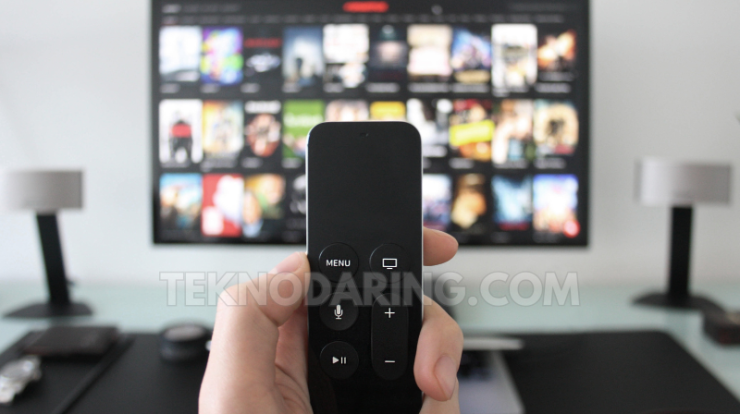
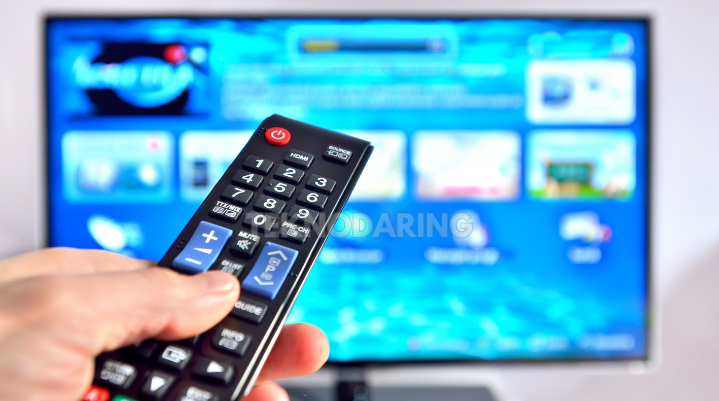
- Press the Home button on your remote.
- Select Apps.
- Browse the available categories or use the search icon.
- Search for the app you want to install.
- Select the app.
- Choose Install.
- Wait for the installation to finish.
- Open the app and sign in if required.
Once installed, the app will appear on your TV’s home screen or in the Apps section for easy access.
How to Search for Apps on Samsung TV
If you already know the name of the app, using the search feature is the fastest option.
- Open Apps.
- Select the Search icon.
- Enter the app name using the on-screen keyboard.
- Select the app from the search results.
- Install it if available.
Popular Apps You Can Download
Samsung Smart TVs support thousands of entertainment and utility apps. Some of the most popular include:
- Netflix
- YouTube
- Disney+
- Prime Video
- Hulu
- Max
- Apple TV
- Spotify
- Plex
- Tubi
Available apps may vary depending on your country, TV model, and software version.
How to Update Apps on Samsung TV
Keeping your apps updated ensures you receive the latest features, security improvements, and bug fixes.
To update apps:
- Open Apps.
- Select Settings.
- Turn on Auto Update.
You can also manually update apps if updates are available.
How to Delete Apps on Samsung TV
If you no longer use an app, removing it can free up storage space.
- Go to Apps.
- Select Settings.
- Choose the app you want to remove.
- Select Delete.
- Confirm the deletion.
Some pre-installed system apps cannot be removed.
Why Can’t I Download Apps on My Samsung TV?
If app downloads aren’t working, one of these issues may be causing the problem:
- Your TV isn’t connected to the internet.
- The Samsung Smart Hub isn’t working properly.
- Your TV software needs updating.
- There isn’t enough storage space.
- The app isn’t compatible with your TV model.
- The app isn’t available in your country.
- Your Samsung account isn’t signed in.
How to Fix Samsung TV App Download Problems
Try these troubleshooting steps:
- Restart your Samsung TV.
- Check your Wi-Fi connection.
- Update the TV software.
- Sign out and back into your Samsung account.
- Reset the Smart Hub.
- Free up storage by deleting unused apps.
- Restart your router if internet issues continue.
How to Update Your Samsung TV Software
Running the latest software can solve many installation problems.
- Open Settings.
- Select Support.
- Choose Software Update.
- Select Update Now.
If an update is available, your TV will download and install it automatically.
Can You Install Third-Party Apps?
Samsung Smart TVs are designed to install apps from the official Samsung App Store. While some users look for ways to install third-party apps, doing so may not be supported, could create security risks, and may affect your TV’s performance.
For the safest and most reliable experience, install apps that are officially available through the Samsung App Store.
Frequently Asked Questions
Do all Samsung TVs have an App Store?
No. Only Samsung Smart TVs with Smart Hub include access to the Samsung App Store.
Why can’t I find Netflix or YouTube?
If a popular app is missing, check that your TV software is up to date and verify that the app is available for your TV model and region.
Can I install apps using a USB drive?
Samsung does not officially support installing most TV apps from a USB drive. Apps should be downloaded through the Samsung App Store.
Final Thoughts
Learning how to download apps on a Samsung TV is simple once you’re familiar with the Smart Hub. With just a few clicks, you can install your favorite streaming services, music apps, and entertainment platforms directly from the Samsung App Store.
If you run into download issues, checking your internet connection, updating your TV software, and ensuring your Samsung account is signed in will solve most problems. Keeping your apps updated also helps deliver the best performance and newest features.